Tutorial
How to enter the administration page
To enter the TaskLynx API administration page, you must access to the URL http://localhost:8080.
It is also possible to access from:
No username or password is required.
The home page is the following:
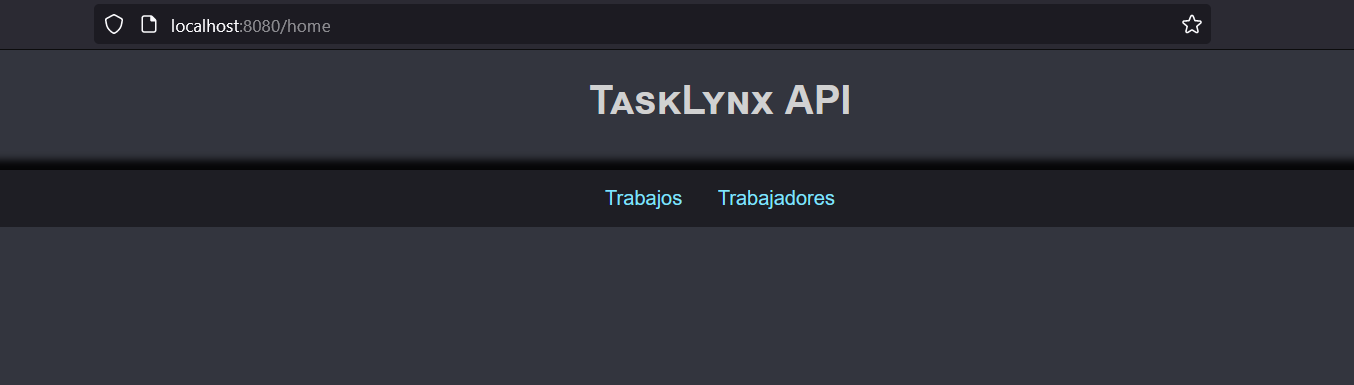
Here you can navigate to the tasks and workers page.
Tasks
Index
The jobs page lists all the jobs that have been created in the application.
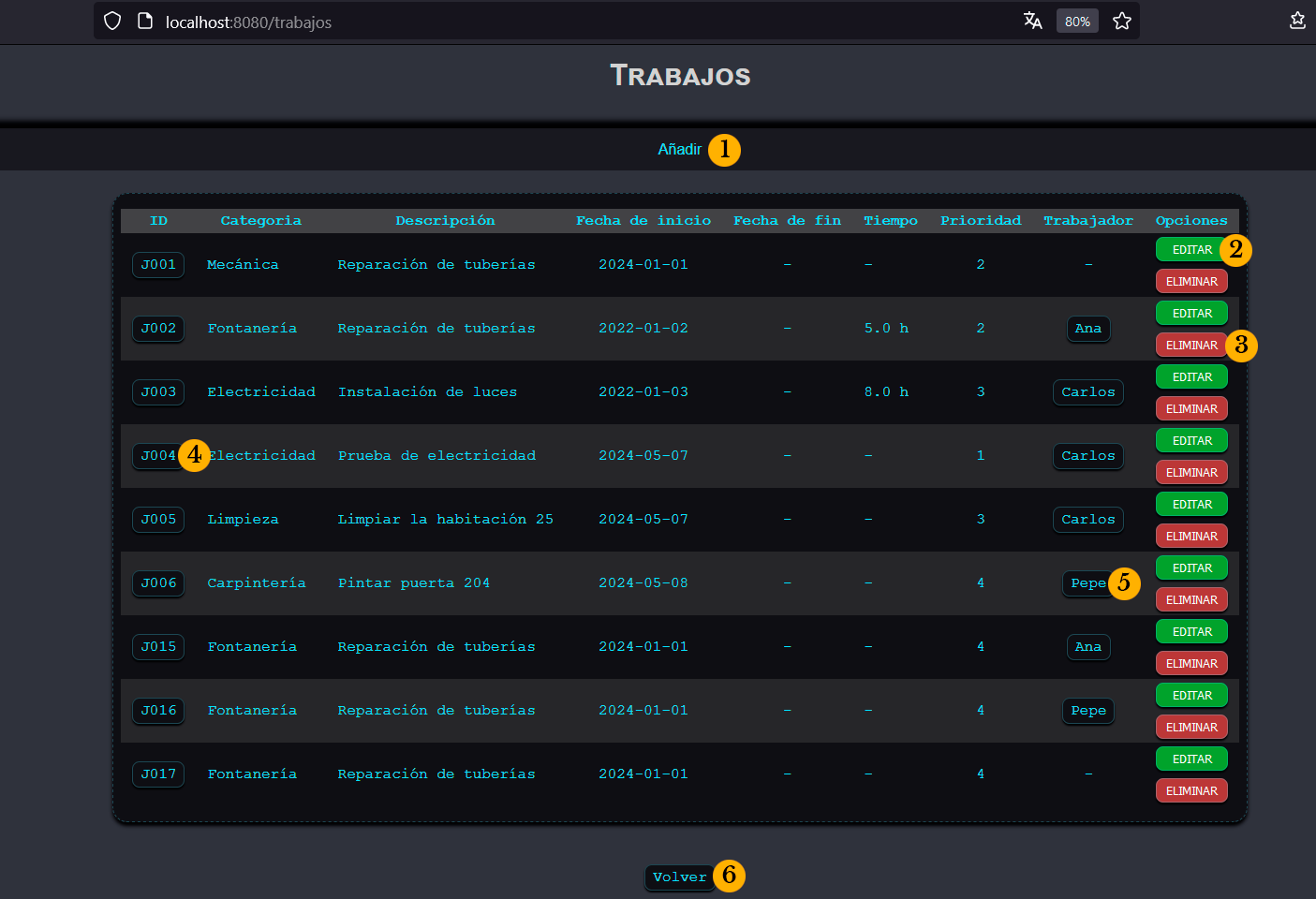
From here, we can:
Create a task.
Edit a task.
Delete a task.
Go to the detailed view of a task by clicking its task code.
Go to a worker's detailed view by clicking on their name.
Go back to Home Page
Add
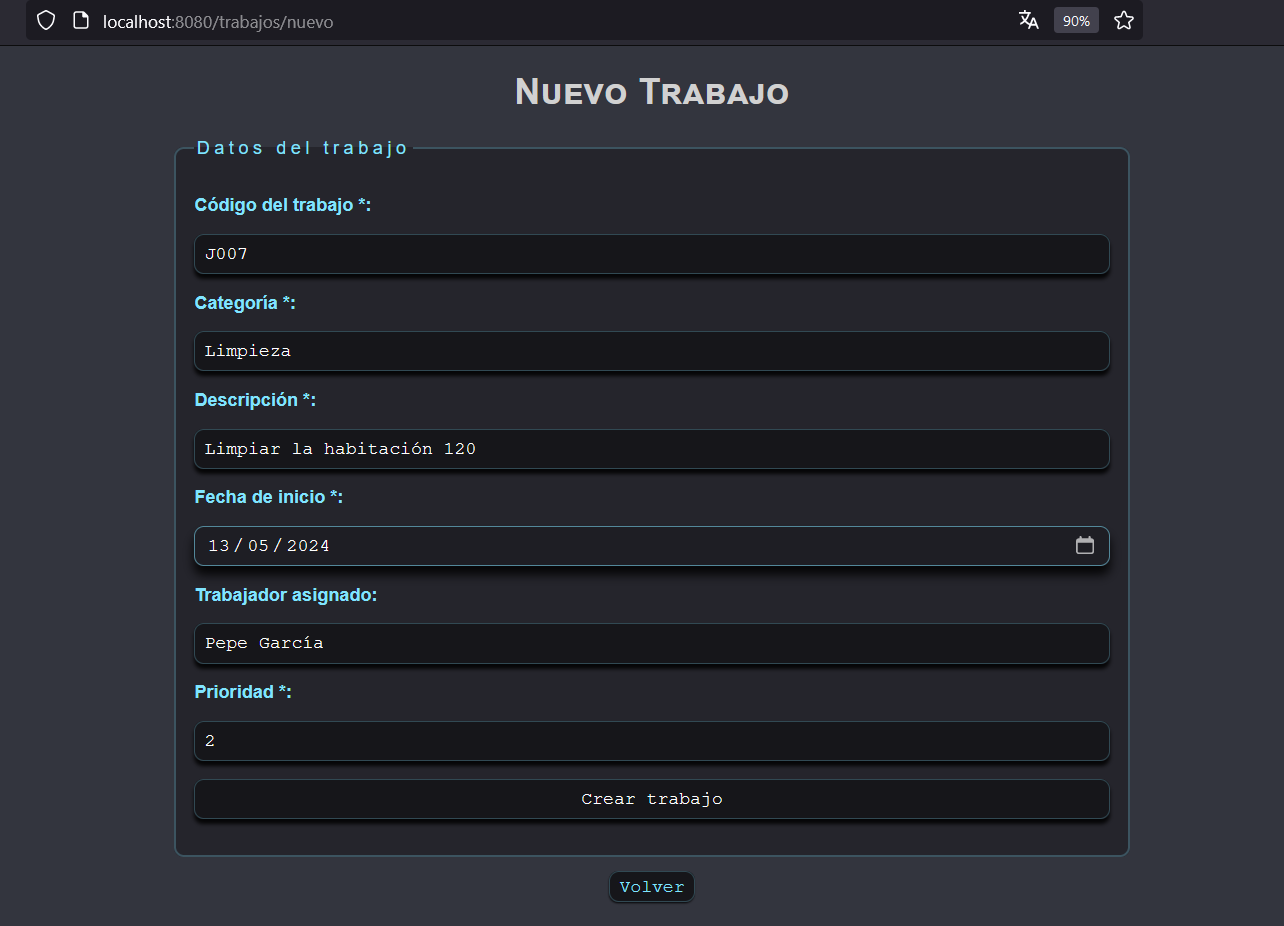
In this page, you can add a new task to the application.
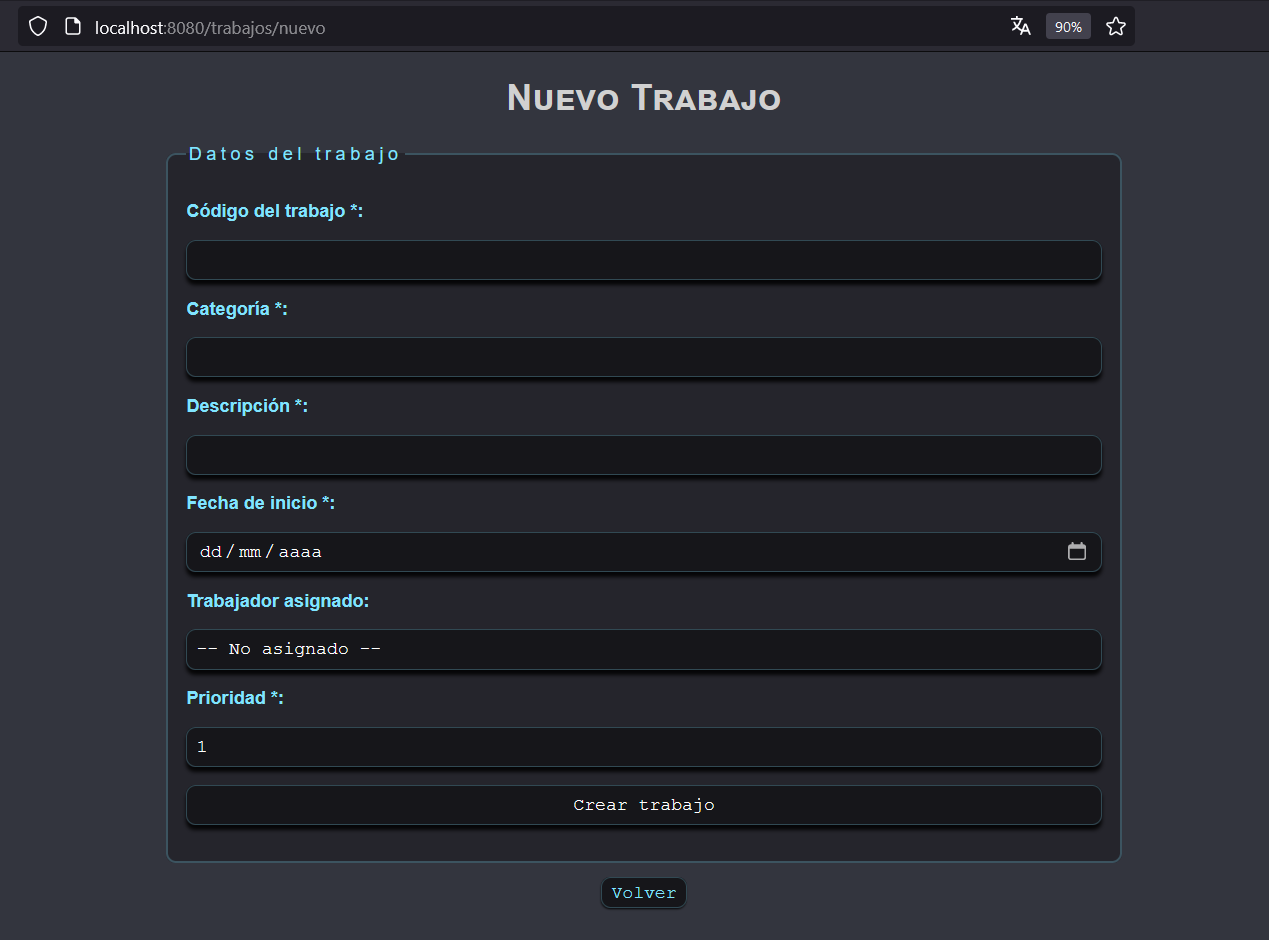
You must add the information marked as *, the other information is optional. This is an example of a new task.
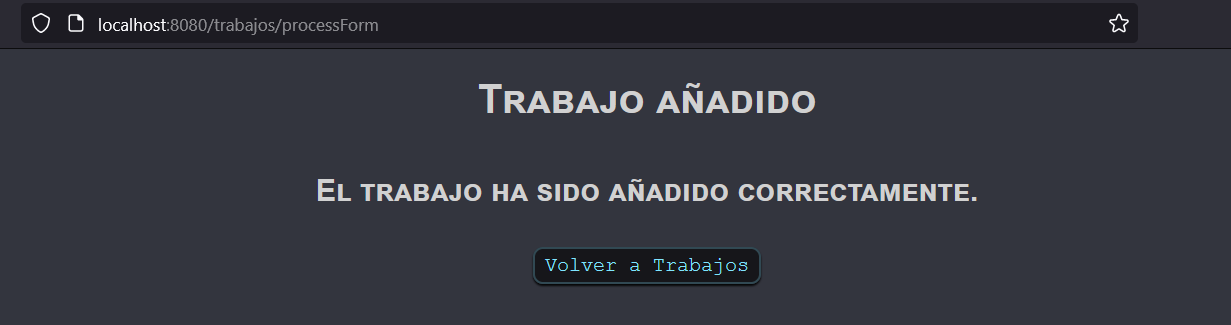
If the information is correct, you will see a page with a confirmation.
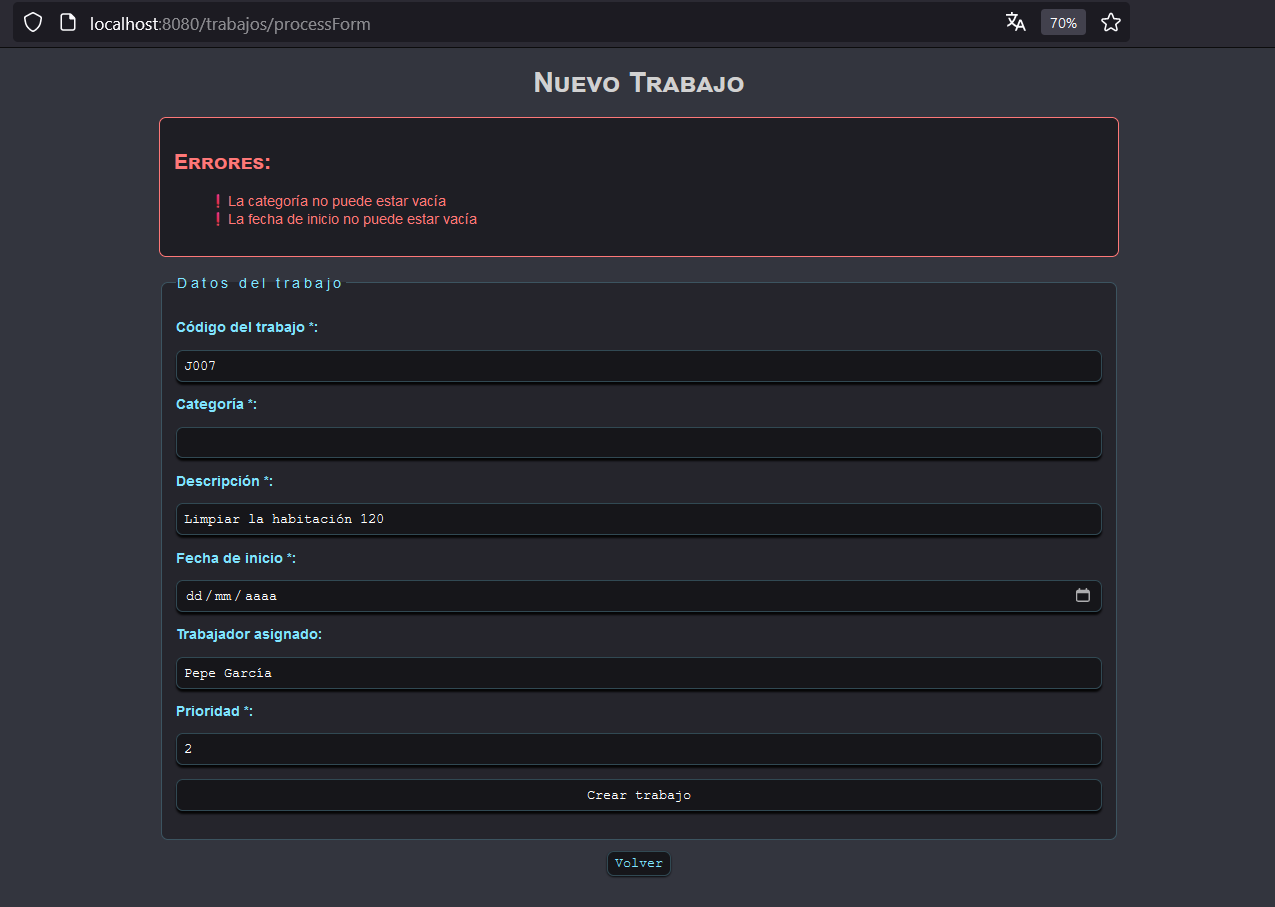
If not, you will see the errors in the add page.
Detail
This page show the details of a specific task. You can access this page by clicking a task code on the Tasks index page.
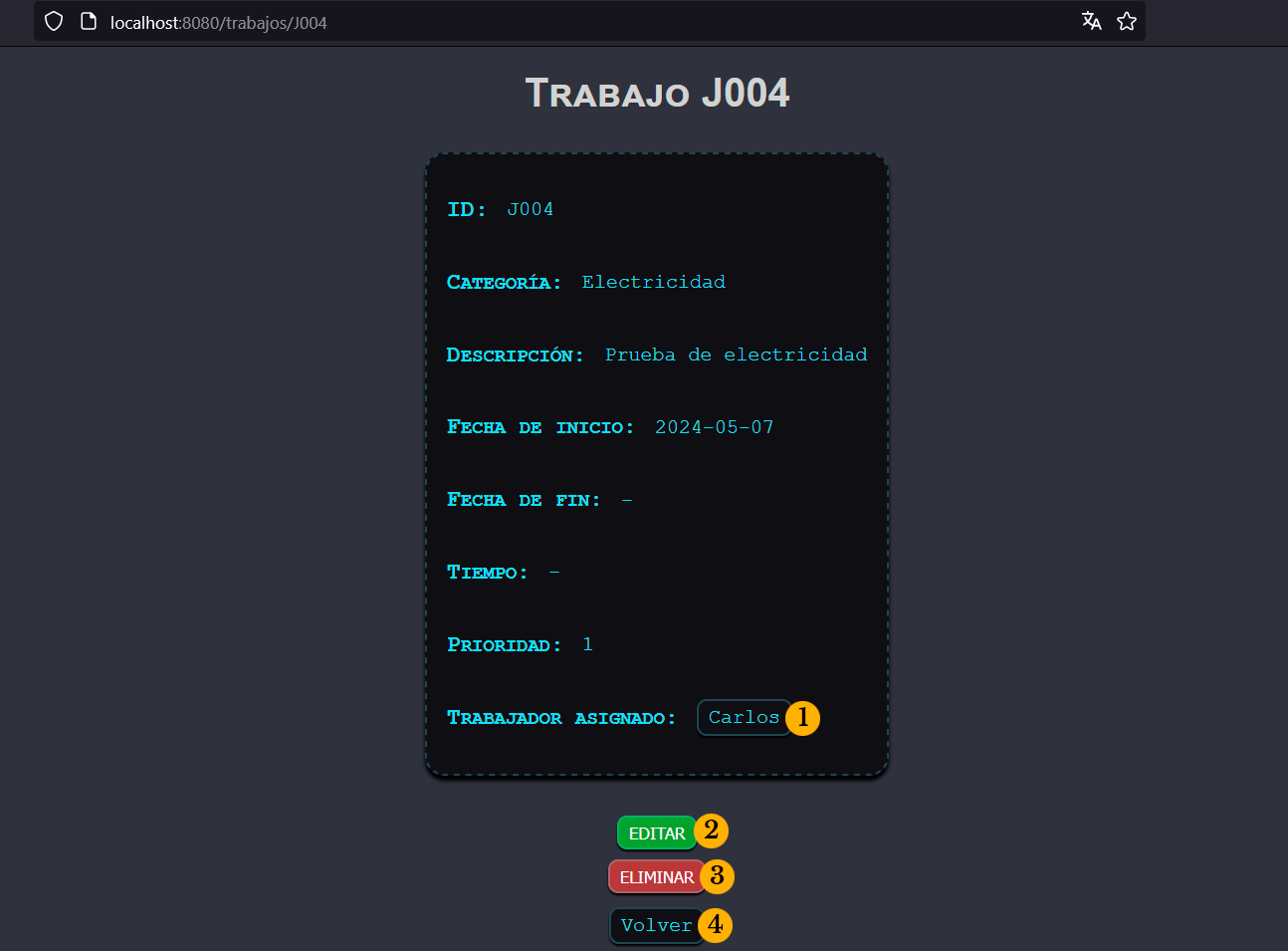
From here, we can:
Go to a worker's detailed view by clicking on their name.
Edit a task.
Delete a task.
Go back to Tasks Index
Edit
On this page, you can edit the details of a task. You can access this page by clicking the "EDITAR" button on Tasks index page.
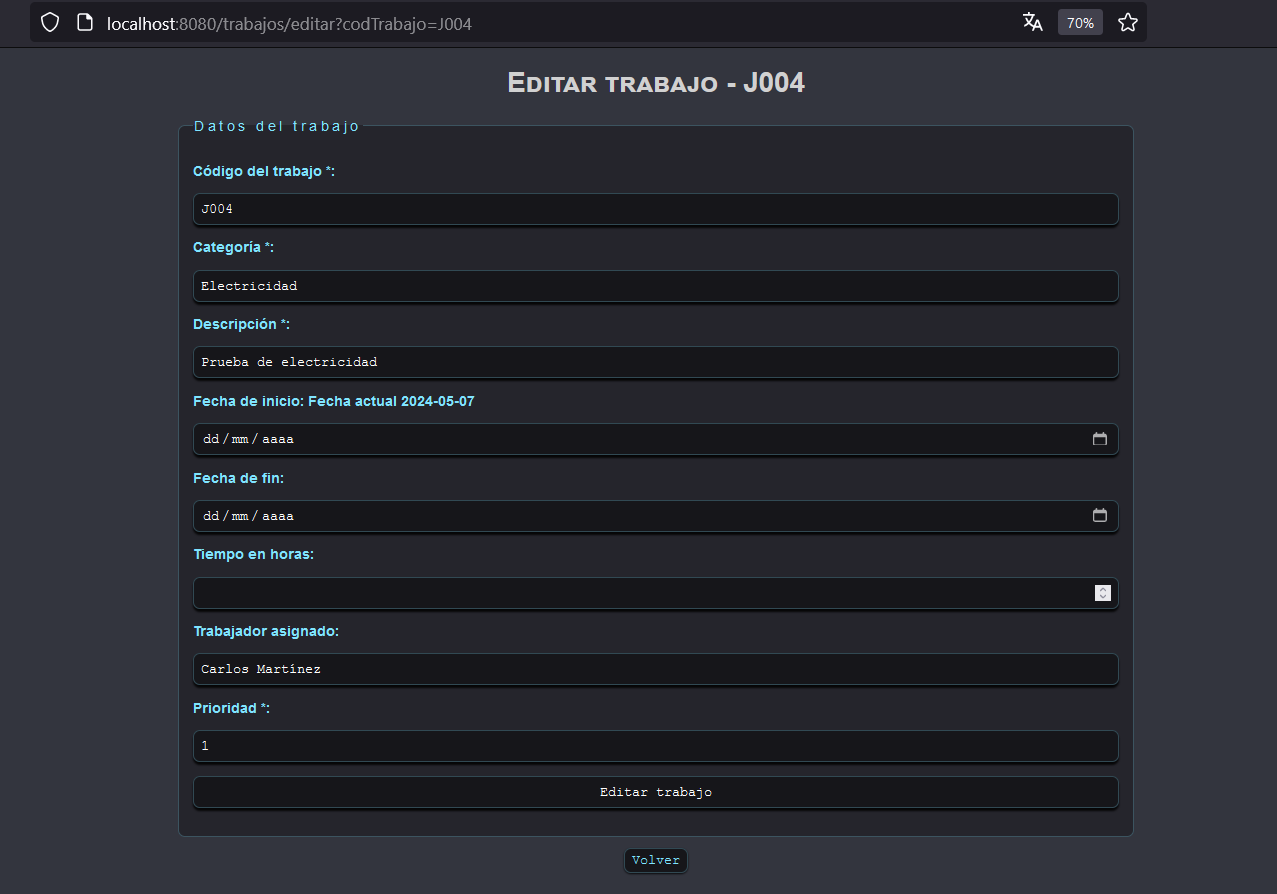
When you modify the information that you need, you can confirm the changes with the button "Editar trabajo".
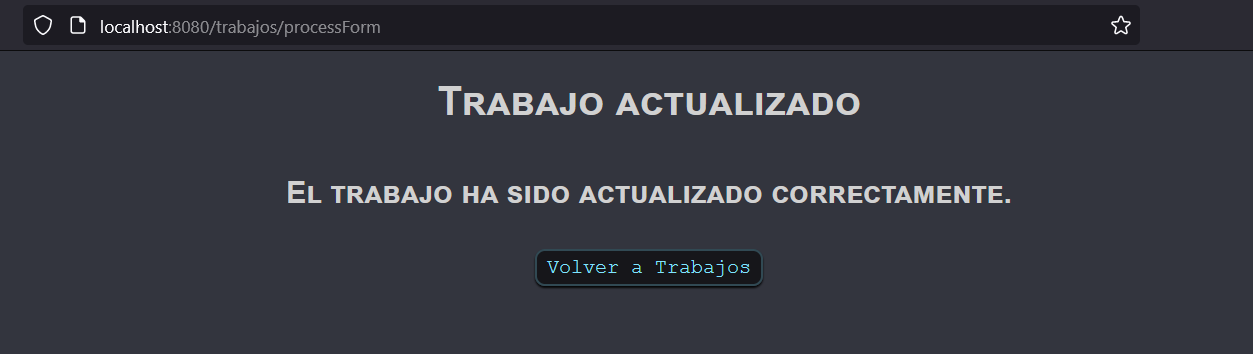
If the information is correct, you will see a page with a confirmation.
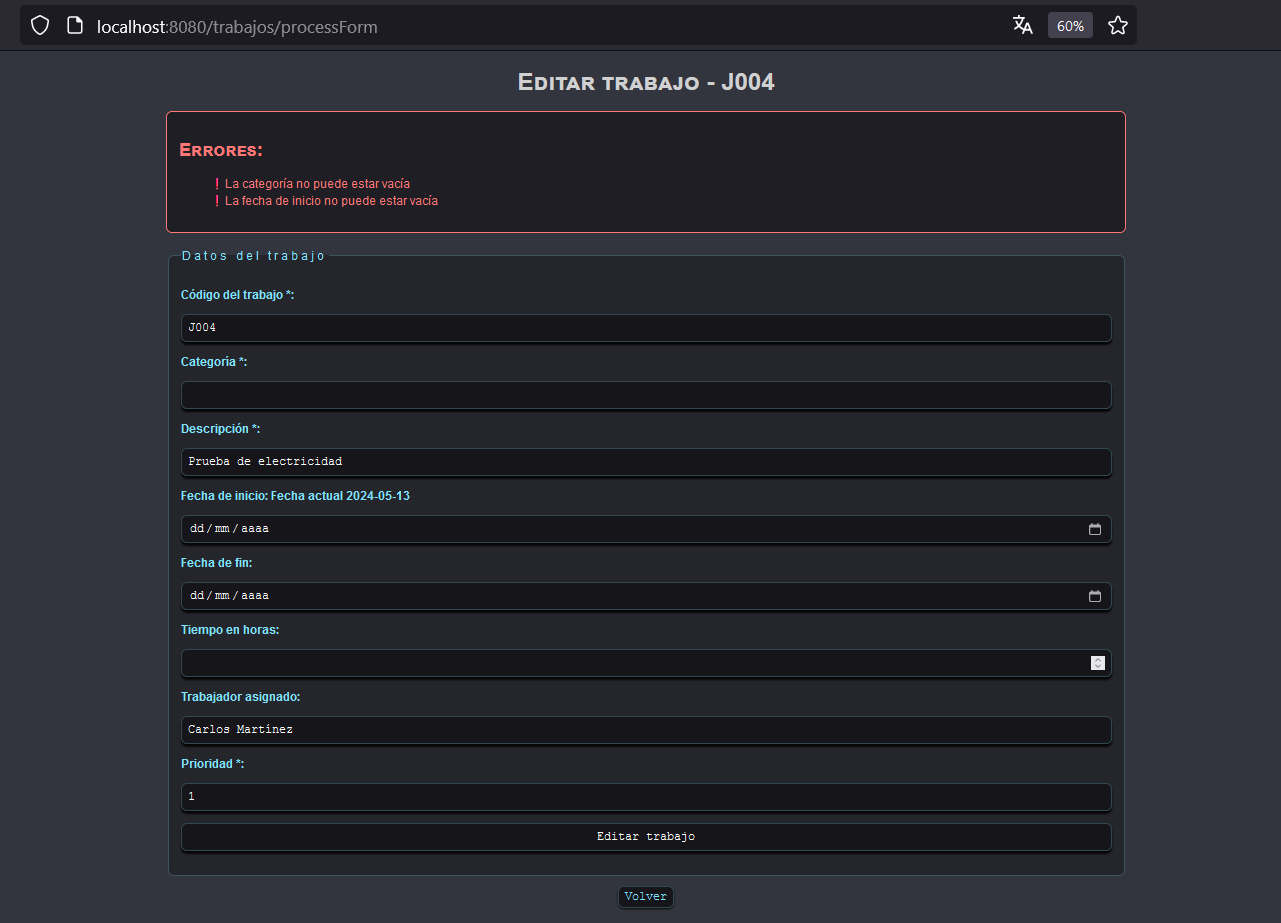
If not, you will see the errors in the edit page.
Delete
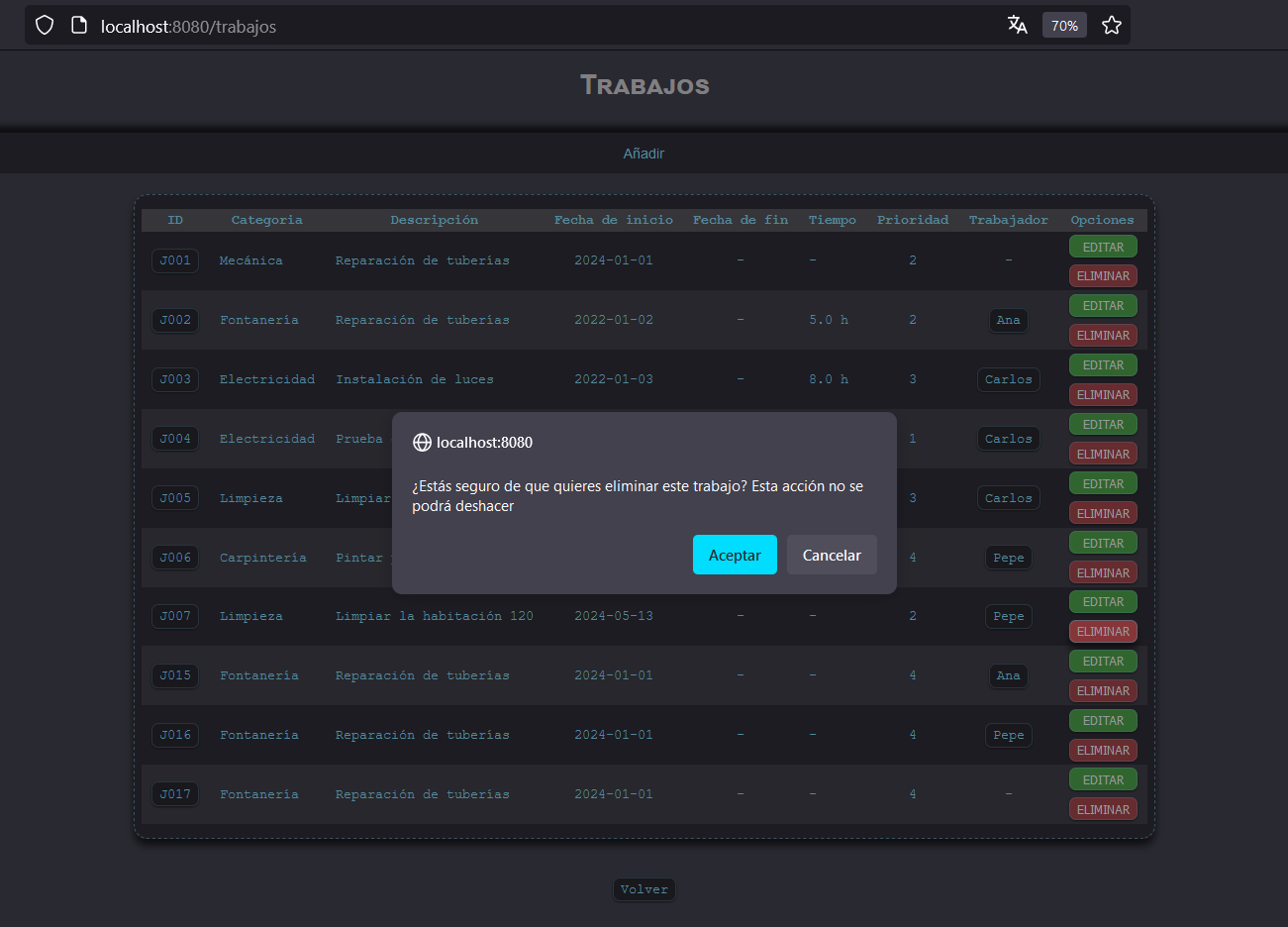
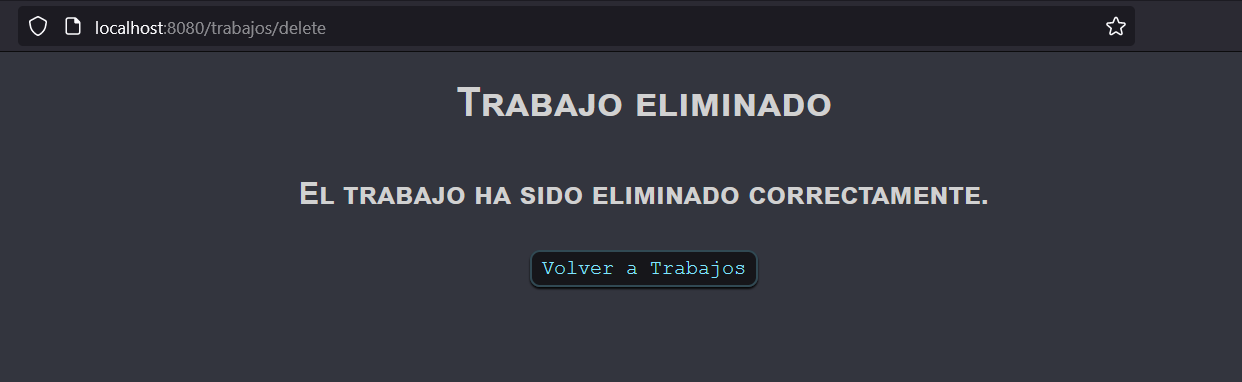
On this page, you can delete a task from the application. You can access this page by clicking the "ELIMINAR" button on Tasks index page.
You must confirm a window to process with task deletion.
Then, you will see a page with a confirmation.
Workers
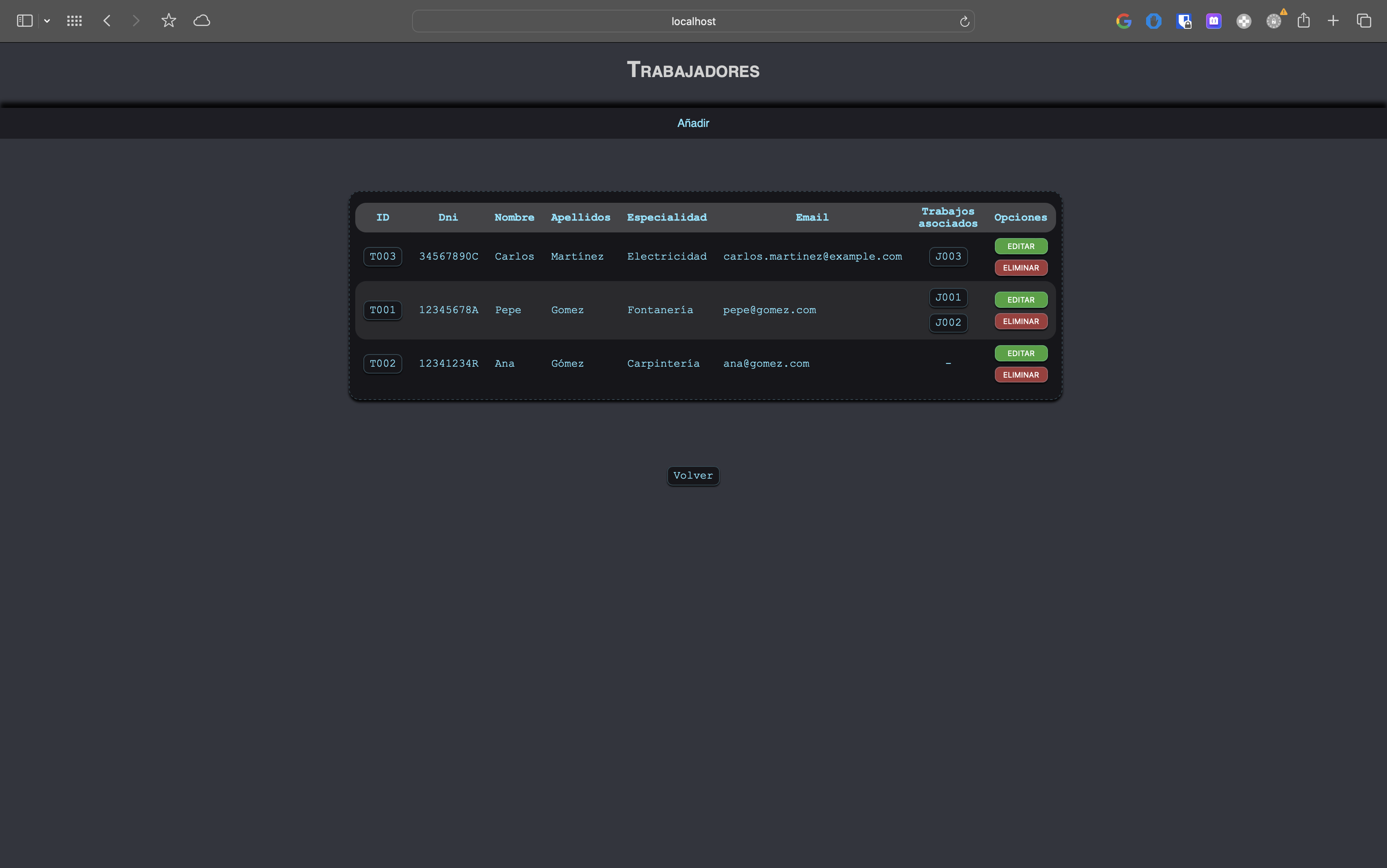
En la vista de trabajadores se listan todos los trabajadores presentes en la aplicación. Es una vista muy similar a la de trabajos, en la que podemos hacer las siguientes acciones:
Crear un trabajador.
Editar un trabajador.
Eliminar un trabajador.
Ir a la vista detalle de un trabajador haciendo click en su ID.
Ir a la vista detalle de un trabajo haciendo click en su código de trabajo.